

Connect to Your Server
Use the IP address and port available on the top of the dashboard page on your panel to join your server.
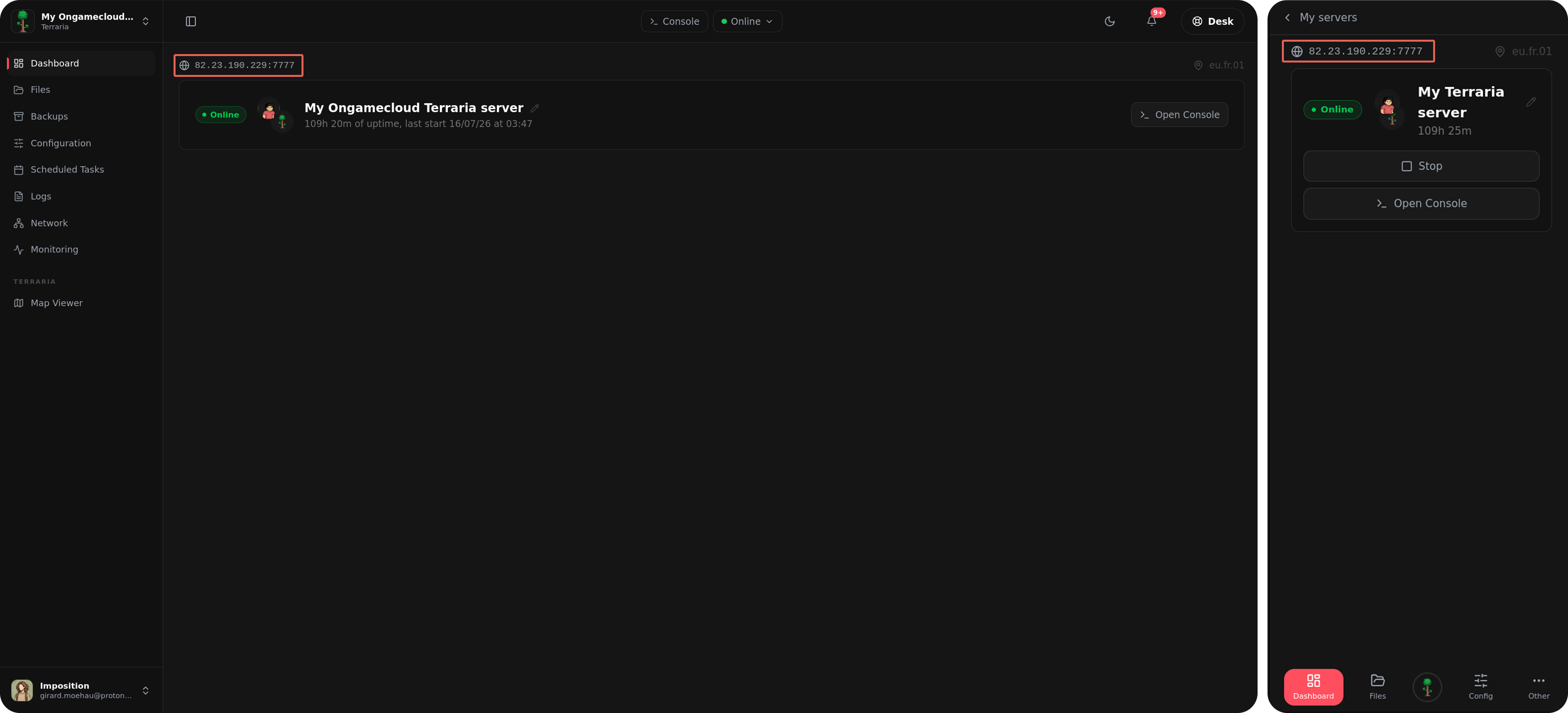
Launch Terraria, select Multiplayer, then Join via IP, and enter your server address. If a password is configured, you'll be prompted to enter it before joining.
Basic Commands
Some commonly used Terraria server commands :
| Command | Description |
|---|---|
help |
Display available commands. |
exit |
Stop the server safely. |
save |
Save the world manually. |
kick <player> |
Remove a player from the server. |
ban <player> |
Ban a player. |
password |
Change the server password. |
With the Ongamecloud command autocomplete juste enter " / " in the console to see and select all the server command.
Voici une reformulation en anglais :
Common Connection Issues
The server won't connect using the IP
Start by checking your control panel to confirm the Terraria server is actually up and running. If it is, try connecting once more, making sure you've entered the IP address and the port as two separate fields. Terraria tends to be fussy about this and not in an endearing way.
A Journey Mode character won't join
Journey Mode characters are restricted to Journey Mode worlds only. If your server is running a standard world, you'll need a non-Journey character instead. And if you're set on using that Journey character, the server's world will need to be switched to Journey Mode as well.